Using MCP Server
Version 10.0 includes a built-in MCP Server, enabling you to generate code that conforms to project specifications through natural language descriptions in your IDE.
Starting the MCP Server
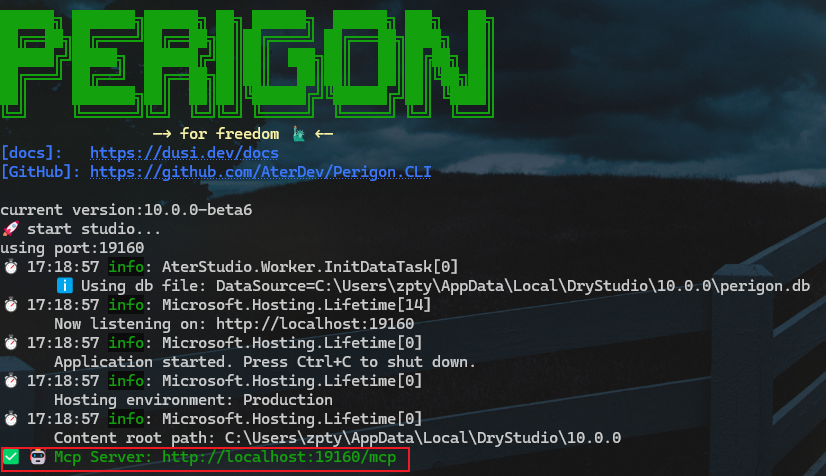
Start studio with the perigon studio command. The MCP Server will start automatically, and you will see:
Adding the MCP Server to Your IDE
The solution root directory already contains a .mcp.json configuration file with the following content:
{
  "servers": {
    "perigon": {
      "url": "http://localhost:19016/mcp",
      "type": "http"
    }
  }
}
It will be automatically read and used by Visual Studio.
If you use VS Code, copy this configuration file to .vscode/mcp.json.
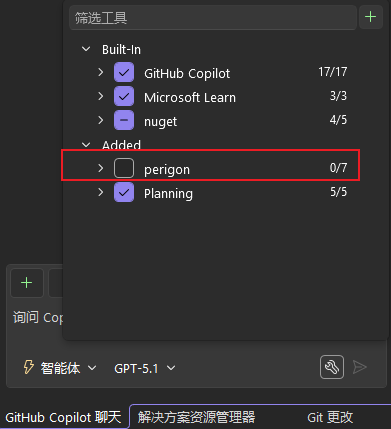
Then you will see the perigon tool in Copilot Chat. Enable it.
Tip
If you don't see the mcp tool, make sure you run perigon studio first, then open the IDE.
Using the MCP Server
You can select from the available tools. Currently, the following features are built-in:
- Create New Entity
- Generate DTO
- Generate Manager
- Generate Controller
- Add New Module
For detailed usage, refer to Built-in Tool Usage Examples.
To customize tools, refer to Custom Tools.
Important
Sometimes you need to explicitly tell the Agent to use MCP tools for it to correctly call the MCP Server to generate code.